> ## Documentation Index
> Fetch the complete documentation index at: https://docs.noyo.com/llms.txt
> Use this file to discover all available pages before exploring further.
# The Snapshot Workflow
> What's happening behind the scenes when you send a snapshot
This section walks you through the complete member change workflow: creating the snapshot, checking its status, and confirming changes (if available).
 # Steps
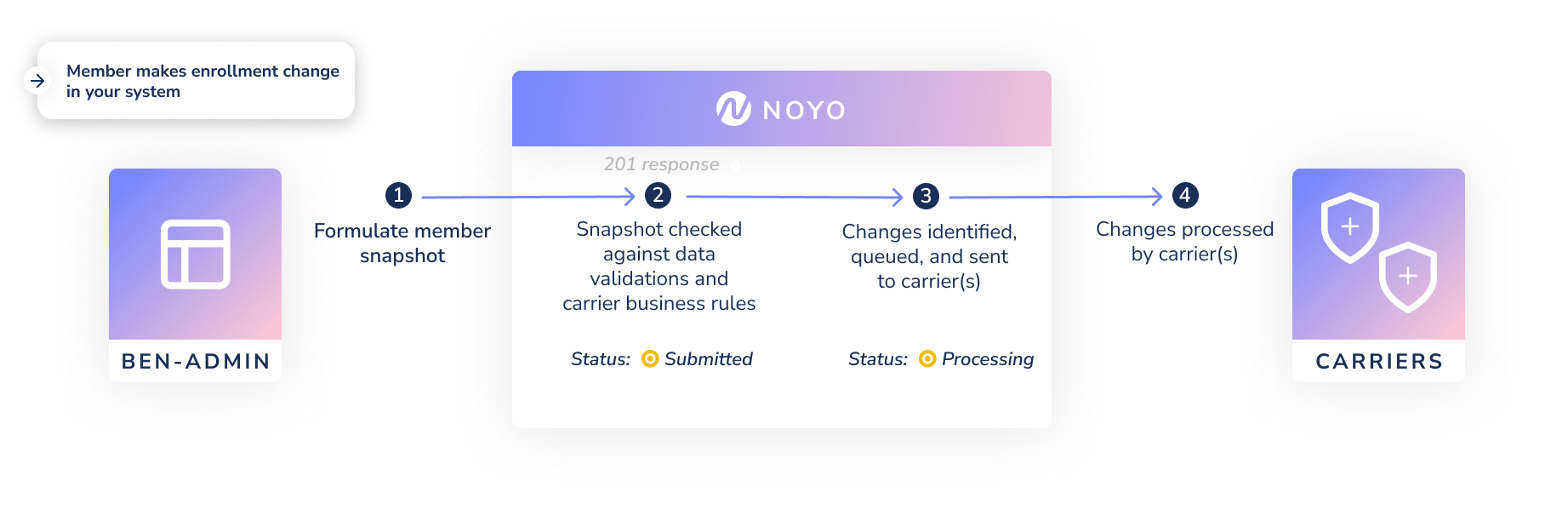
Submit a snapshot for an employee and their family using `POST /api/v1/groups/:group_id/member_snapshots`.
Populate the Employee section with your `custom_individual_id` and the employee's classifications. Set the Employment information and Employment Dates. Send as much demographic information as possible in the Person and Dependent sections.
Populate the Coverages list by adding a block for each plan or coverage the member and their dependent(s) should be enrolled in:
* Set the `line_of_coverage` and `plan_id` to the linked Noyo plan
* Set the `carrier_config` block to the member's chosen account structure option(s) *(this section may be blank, or be populated according to individual carrier requirements)*
* Set the `individual_type` and `custom_individual_id` to match your employee record
* Set the `effective_start_date` and `effective_end_date` of the coverage. (If a user hasn't requested to terminate coverage, use datemax of 9999-12-31 for the end date.)
Populate the Events section with the `event_id`, reason, and date for the relevant event.
With this data, a member snapshot should be ready to send. Check out our special cases documentation for specific examples of how to formulate a member snapshot for different scenarios:
* [COBRA enrollments](/docs/members/complex-changes/cobra)
* [Evidence of Insurability (EOI)](/docs/members/complex-changes/eoi)
* [Primary Care Provider (PCP) selection](/docs/members/complex-changes/pcp)
* [Rehires](/docs/members/complex-changes/rehires)
If successful, you should get a response with a new unique ID for the snapshot, the original contents of the snapshot, and an initial status of `submitted`. Your system should record the new snapshot ID to check on the status (see below).
A more specific breakdown of the snapshot format can be found in [the API Reference](/api-reference/snapshots/create-member-snapshot).
Noyo validates the request for content and uses encoded carrier logic to ensure it has a chance to be processed by the carrier. For full detail on possible responses, see [Snapshot Responses](/docs/members/using-snapshots/snapshot-responses).
Noyo will process the snapshot contents, break the snapshot into [transactions](/docs/members/snapshot-workflow/snapshot-transactions), generate the correct payload to each target carrier, and determine what queuing might need to happen to conform to the carrier's requirements.
The carrier makes the submitted changes in their system. Most changes for Sync carriers are completed in seconds. **The next steps depend on whether you are sending changes for a Sync or Send carrier.**
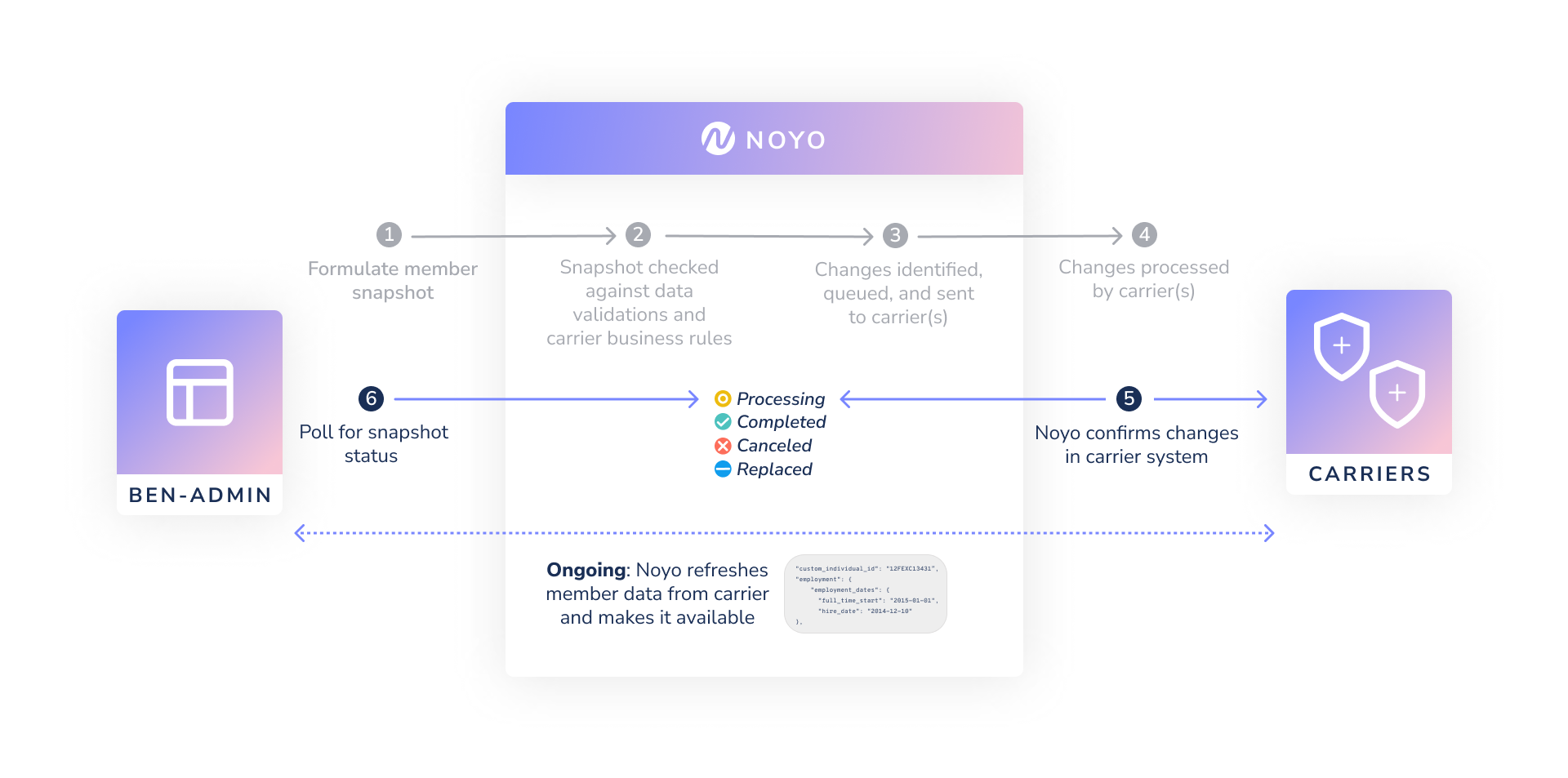
We'll check that the transmission was successful by immediately checking the carrier's system to see that their data has been updated to match the request and they are done processing the data. This is the first step of our round-trip confirmation process to ensure that member data is accurate across systems.
Important note: A carrier may finish processing a transaction but not actually update the data in their system correctly. In this case, we will detect the mismatch and raise it as a discrepancy in the Noyo web application. The transaction (and the member snapshot it belongs to) will have a status of `completed` in our system.
We recommend reading [Snapshot Statuses](/docs/members/snapshot-workflow/snapshot-status) to see your options for detailed status tracking
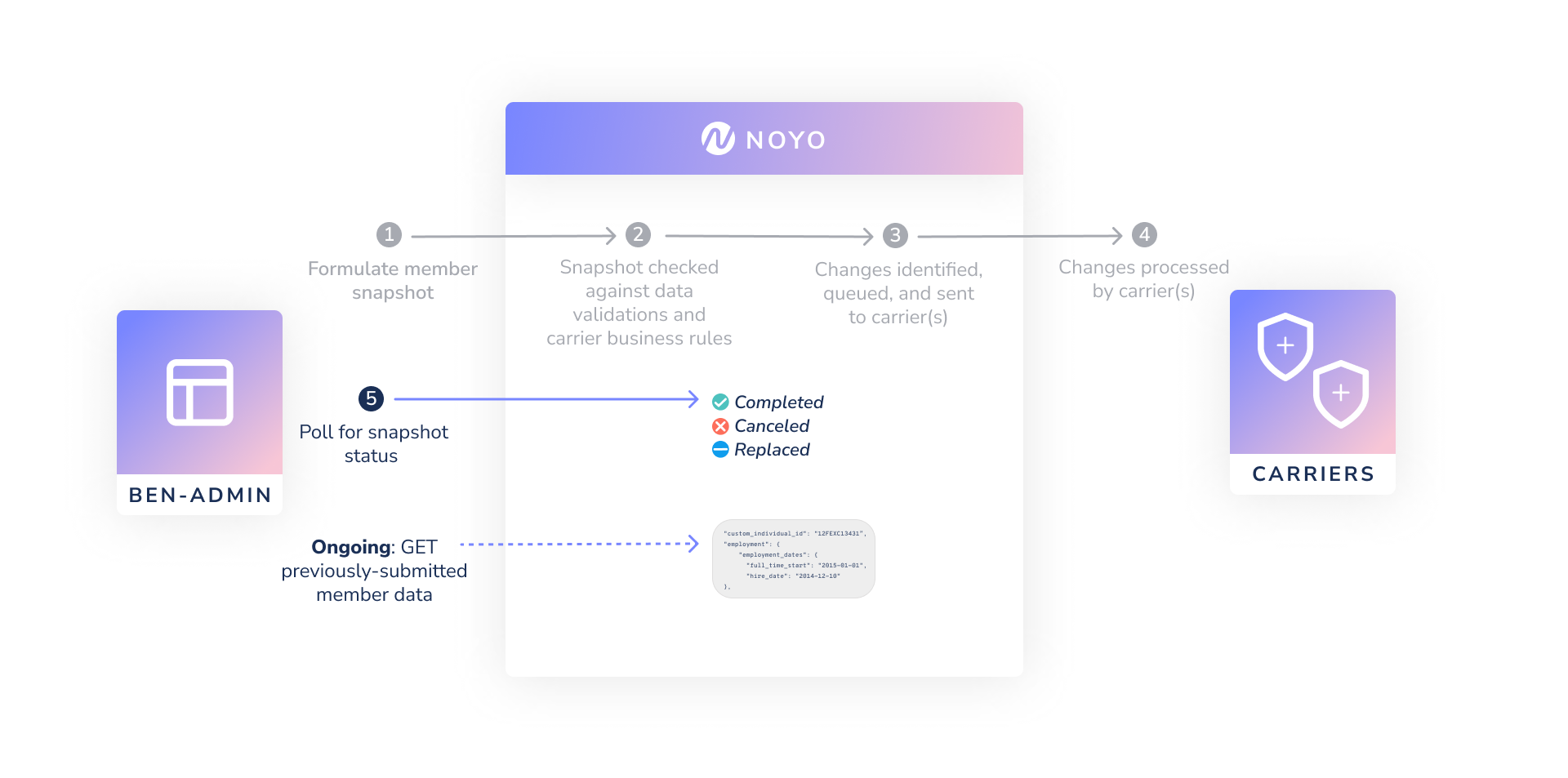
Any time after a snapshot has been accepted, you can poll Noyo for its status. See [Snapshot Statuses](/docs/members/snapshot-workflow/snapshot-status) for full details. In short, the statuses returned for Sync carriers can mean:
* One or more transactions in the snapshot have not been completed by the carrier yet (`processing`)
* All transactions in the snapshot have been completed by the carrier (`completed`)
* The request was canceled and no change was sent to the carrier (`canceled`)
* We received a newer snapshot for this family (`replaced`)
As soon as the carrier has made the requested changes and no discrepancies are detected, Noyo updates our system to reflect the new data. This will happen at the same time the snapshot status reaches `complete`. If any transactions had an effective date in the future, our second round-trip confirmation check validates the data with the carrier again on that date.
**Snapshots with Premier and Standard/Advanced changes**\
If your member snapshot contains changes being sent via both Premier and Standard connections, it's likely that the Premier requests will complete quickly while the Standard requests wait to be sent. The status of the snapshot will remain in `processing` until all changes are successfully transmitted for all connections.
You can use our [member data endpoints](/docs/data/member-data-endpoints) to pull back the latest info into your own system. If desired, you can use this data for reconciliation, or to support your own internal tooling.
We offer out-of-the-box discrepancy management in the UI or via the [Tracking API](/docs/members/snapshot-workflow/basic-snapshot-tracking), where you can understand and manage discrepancies, including seeing a side-by-side field comparison between what you submitted and what the carrier has.
### Premier Connection flow
# Steps
Submit a snapshot for an employee and their family using `POST /api/v1/groups/:group_id/member_snapshots`.
Populate the Employee section with your `custom_individual_id` and the employee's classifications. Set the Employment information and Employment Dates. Send as much demographic information as possible in the Person and Dependent sections.
Populate the Coverages list by adding a block for each plan or coverage the member and their dependent(s) should be enrolled in:
* Set the `line_of_coverage` and `plan_id` to the linked Noyo plan
* Set the `carrier_config` block to the member's chosen account structure option(s) *(this section may be blank, or be populated according to individual carrier requirements)*
* Set the `individual_type` and `custom_individual_id` to match your employee record
* Set the `effective_start_date` and `effective_end_date` of the coverage. (If a user hasn't requested to terminate coverage, use datemax of 9999-12-31 for the end date.)
Populate the Events section with the `event_id`, reason, and date for the relevant event.
With this data, a member snapshot should be ready to send. Check out our special cases documentation for specific examples of how to formulate a member snapshot for different scenarios:
* [COBRA enrollments](/docs/members/complex-changes/cobra)
* [Evidence of Insurability (EOI)](/docs/members/complex-changes/eoi)
* [Primary Care Provider (PCP) selection](/docs/members/complex-changes/pcp)
* [Rehires](/docs/members/complex-changes/rehires)
If successful, you should get a response with a new unique ID for the snapshot, the original contents of the snapshot, and an initial status of `submitted`. Your system should record the new snapshot ID to check on the status (see below).
A more specific breakdown of the snapshot format can be found in [the API Reference](/api-reference/snapshots/create-member-snapshot).
Noyo validates the request for content and uses encoded carrier logic to ensure it has a chance to be processed by the carrier. For full detail on possible responses, see [Snapshot Responses](/docs/members/using-snapshots/snapshot-responses).
Noyo will process the snapshot contents, break the snapshot into [transactions](/docs/members/snapshot-workflow/snapshot-transactions), generate the correct payload to each target carrier, and determine what queuing might need to happen to conform to the carrier's requirements.
The carrier makes the submitted changes in their system. Most changes for Sync carriers are completed in seconds. **The next steps depend on whether you are sending changes for a Sync or Send carrier.**
We'll check that the transmission was successful by immediately checking the carrier's system to see that their data has been updated to match the request and they are done processing the data. This is the first step of our round-trip confirmation process to ensure that member data is accurate across systems.
Important note: A carrier may finish processing a transaction but not actually update the data in their system correctly. In this case, we will detect the mismatch and raise it as a discrepancy in the Noyo web application. The transaction (and the member snapshot it belongs to) will have a status of `completed` in our system.
We recommend reading [Snapshot Statuses](/docs/members/snapshot-workflow/snapshot-status) to see your options for detailed status tracking
Any time after a snapshot has been accepted, you can poll Noyo for its status. See [Snapshot Statuses](/docs/members/snapshot-workflow/snapshot-status) for full details. In short, the statuses returned for Sync carriers can mean:
* One or more transactions in the snapshot have not been completed by the carrier yet (`processing`)
* All transactions in the snapshot have been completed by the carrier (`completed`)
* The request was canceled and no change was sent to the carrier (`canceled`)
* We received a newer snapshot for this family (`replaced`)
As soon as the carrier has made the requested changes and no discrepancies are detected, Noyo updates our system to reflect the new data. This will happen at the same time the snapshot status reaches `complete`. If any transactions had an effective date in the future, our second round-trip confirmation check validates the data with the carrier again on that date.
**Snapshots with Premier and Standard/Advanced changes**\
If your member snapshot contains changes being sent via both Premier and Standard connections, it's likely that the Premier requests will complete quickly while the Standard requests wait to be sent. The status of the snapshot will remain in `processing` until all changes are successfully transmitted for all connections.
You can use our [member data endpoints](/docs/data/member-data-endpoints) to pull back the latest info into your own system. If desired, you can use this data for reconciliation, or to support your own internal tooling.
We offer out-of-the-box discrepancy management in the UI or via the [Tracking API](/docs/members/snapshot-workflow/basic-snapshot-tracking), where you can understand and manage discrepancies, including seeing a side-by-side field comparison between what you submitted and what the carrier has.
### Premier Connection flow
 ### Advanced & Standard Connection flow