
Group Data
The group object represents an insured group/employer that is managed by your organization and successfully connected to Noyo. Group, plan, and enrollment data is available when a group connection request for a Sync carrier iscomplete or when a Send group connection’s status is action_required.
In general, you cannot edit group-level data through Noyo, with the exception of name, FEIN, DBA name, and SIC code. All other group level data, like location addresses or tax information, must be changed directly with the carrier.
Group basics
Create a group to get started. Get a Single Group to view details such as the name of the group, the EIN, and the SIC code of the company. To see all the groups managed with Noyo by your organization, you can Get a List of All Groups. You can search that groups list with the company query param. It allows searches based on the group’sname or dba_name values.
Other helpful group data is available using the group’s ID:
- Get Single Contact for latest version of a single group contact
- Get Contacts List for a list of all group contacts for a given group
- Get Locations for all addresses associated with a group, or Get Single Location for the latest version of a specific address
Carrier configurations
Certain carriers have custom data for each group, such as billing information. Use the Get Group Carrier Configurations endpoint to retrieve any carrier-specific configuration data for a given group. This endpoint can be used to retrieve carrier-specific configuration data. Here are the options for this object:Filter for a carrier’s group ID
You can use the combination of acarrier_id and a carrier_group_id to filter for a carrier-specific group ID. This ID will depend on the carrier, but it will generally be a unique identifier for the group from the carrier’s system.
Carrier syncs
Noyo regularly syncs–or retrieves–group data from any Sync carriers the group has coverage with to bring in the carrier’s version of the group. The Get Latest Audit endpoint returns metadata about the last group audit that was completed. If no group audits have been completed, thecompleted_at timestamp will be the timestamp of when the group was created and the carrier_ids array will be empty.
Plan and enrollment data
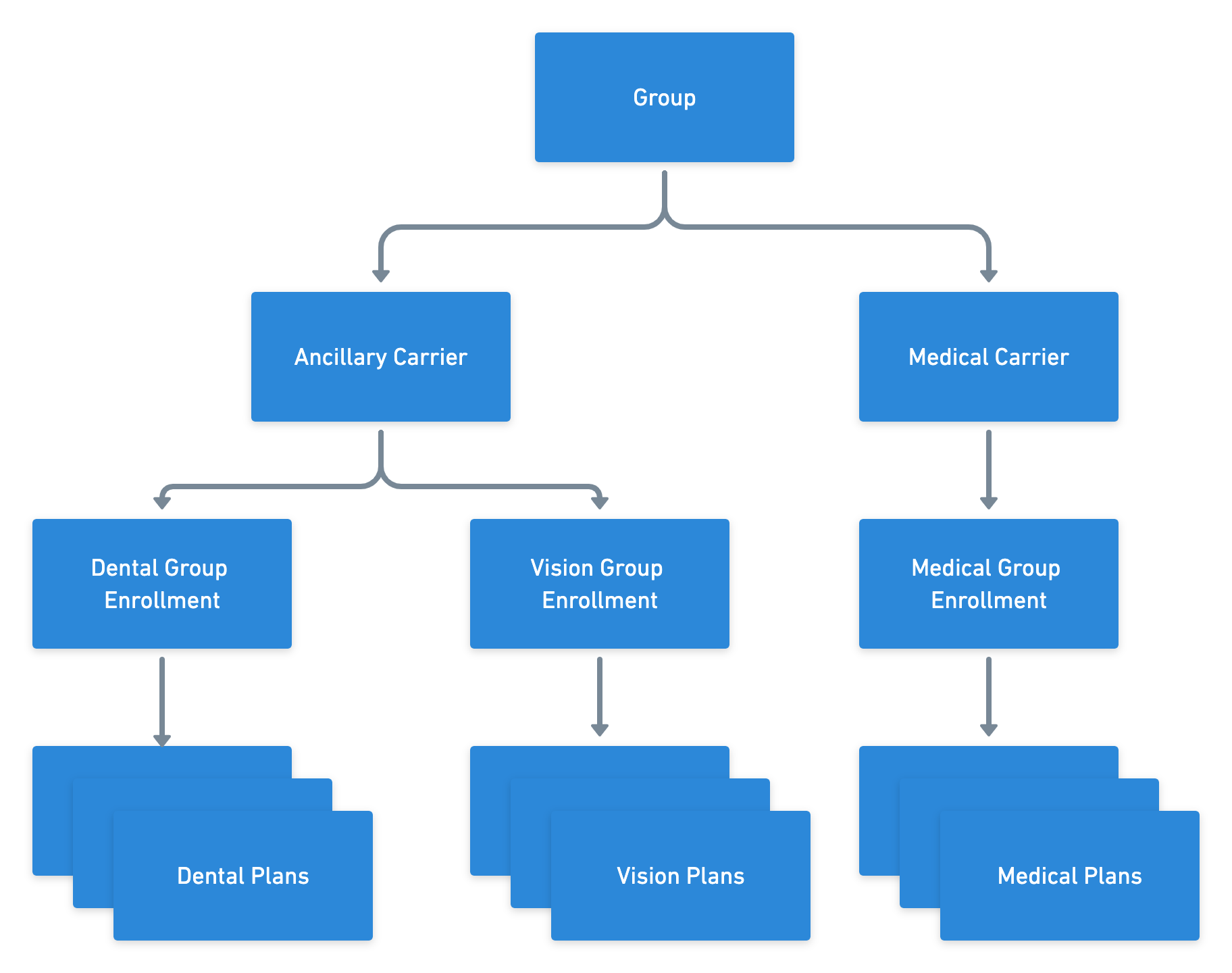
Enrollments
The enrollments object represents the each individual line of coverage (LOC) being offered by a specific group (e.g.medical, dental, vision). You can manage the following types of benefits through Noyo:
- Accident
- Accidental death and dismemberment (AD&D)
- Cancer
- Critical Illness
- Dental
- Hospital indemnity
- Life
- Long-term disability (LTD)
- Medical
- Short-term disability (STD)
- Vision
Plan data
The plans object represents a plan or benefit offered by a carrier to employee or dependent members of a group. You can use the group’s ID to get a list of all their plans, which returns IDs for each individual plan. You can also use a group plan ID to get details on a specific plan. Note that the response will be nested in aplan attribute. Different data is included in the response for each plan depending on its LOC. See below for specific data returned across all LOCs supported by Noyo and more detail on waiting periods.
Accident Plan Object
AD&D Plan Object
Cancer Plan Object
Critical Illness Plan Object
Dental Plan Object
Hospital Indemnity Plan Object
Life Plan Object
LTD Plan Object
Medical Plan Object
STD Plan Object
Vision Plan Object
Waiting periods
Each group plan may include one or more waiting period rules based on the information made available by the carrier. Each waiting period will always have awaiting_period_enrollment_type field. The waiting_period_enrollment_type determines when the waiting period is used: new_member applies to new members enrolling as new hires, current_member applies to existing members enrolling with a QLE, and rehire applies to previously active members re-enrolling as a rehire.
Each waiting period will always have a waiting_period_rule field. This field is a general description of the waiting period rule, and determines which other fields will be present in the waiting period response.
Some waiting period rules have a waiting_period_coinciding flag. This flag is relevant when the rule defines a specific date for starting coverage and the member waiting period may end on that date.
For example, the waiting period rule may be ‘1st of month after hire date’ for a new member with a hire date of January 1st. When waiting_period_coinciding is true, the member would begin coverage immediately in the coinciding period, starting on January 1st. When waiting_period_coinciding is false, the member coverage would be pushed out to the following period starting February 1st.